



Rules are the core of Smart User Manager. They define which users should be processed and which action should be performed automatically.
Each rule consists of four components:
- Rule Details – basic information and settings for the rule
- Trigger – determines when and under which circumstances the rule is executed
- Conditions – define which users are processed by the rule
- Action – specifies the action to perform for the matching users
A rule is only executed if it is published and triggered by a corresponding scheduled task.
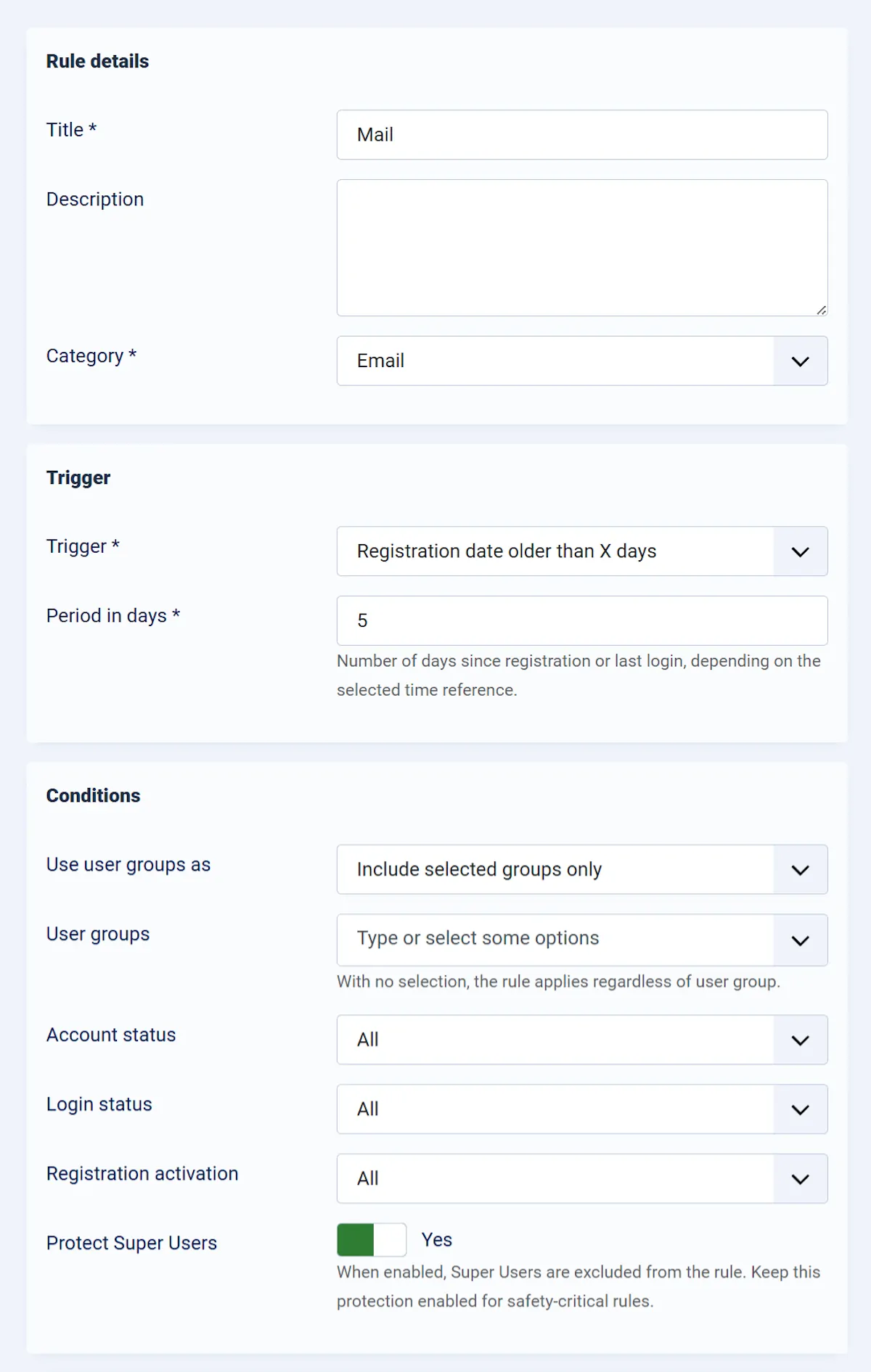
Rule Details
In the upper section of the rule, you define its basic properties.
These include:
- Rule title
- Description
- Category
Choose a meaningful title so that the purpose of the rule can be identified at a glance.
You can select either Email or Action as the category. This field is used for organizational purposes only and has no effect on the rule's behavior.
Trigger
In this section, you define what triggers the rule.
You can choose either Registration Date Older Than X Days or Last Login Older Than X Days. Enter the corresponding number of days in the field below.
All available triggers and their behavior are explained in detail in the Triggers chapter.
Conditions
In the Conditions section, you define which users should be processed by the rule.
A rule can contain any number of conditions. The following principle always applies:
A user is processed only if all defined conditions are met.
Depending on your use case, you can filter users based on criteria such as their registration date, last login, activation status, or user group.
All available conditions are described in detail in the Conditions chapter.
Action
After the matching users have been identified, Smart User Manager performs the selected action.
Only one action can be configured per rule.
For example, you can:
- send an email,
- block users,
- unblock users,
- disable users,
- add users to a user group,
- remove users from a user group, or
- delete users.
All available actions are explained in detail in the Actions chapter.
Tip: If you want to perform multiple steps—for example, send a reminder email first and delete users a few days later—create multiple rules with different conditions or time periods.
Preview of Matching Users
While editing a rule, you can preview which users currently match the configured conditions at any time.
The preview displays all users that would be processed if the rule were executed. This allows you to verify that the rule works as expected before running it for the first time.
Recommendation: It is also recommended to use Simulation Mode before putting a new rule into production.